Understanding App Audiences and Accessing the 'Feed Dynamics Reports' App
How to Access the Feed Dynamics Reports App
Open Power BI at https://powerbi.com/
Navigate to the Apps section (usually found in the left-hand menu)
If the app isn't installed already, go to 'Get Apps' and search for 'Feed Dynamics Reports'
Launch the app.
What is an Audience in a Fabric App?
The Feed Dynamics Reports app is split into audiences. Each audience sees a specific set of reports and dashboards relating to different functional areas.
This means:
- Different people can see different content in the same app.
- You only see the reports that are relevant to the group (audience) you belong to.
- Your access is controlled by which Feed Dynamics Reports - {Audience Name} group you're in.
Example Audiences:
- Feed Dynamics Reports - Production → Shows only Production-related reports.
- Feed Dynamics Reports - Receivables → Shows only Receivables-related reports.
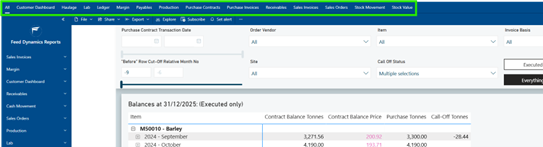
The list of audiences is located at the top of the app
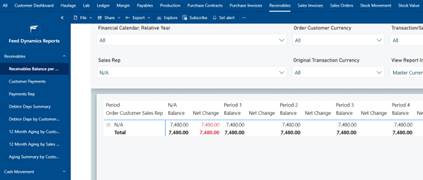
In the example below with the Receivables audience selected, as indicated by the white line underneath it, we see the audience has access to the Receivables & Cash Movement reports within the Feed Dynamics App